







Marketplace

For Sale

List it. Sell it. Spend it.

The For Sale feature in the StampBox™ Marketplace empowers individual collectors and dealers to transform extra or unwanted philatelic items—whether used or unused stamps, supplies, or publications—into new opportunities. Have duplicates, items outside your collecting focus, or trade-ins from your last swap? List them for sale and receive Coins or cash in return. Coins earned can be reinvested across the platform: trade with others join events, or grow your collection. With a global network of collectors, your unwanted item might be exactly what someone else is searching for. It’s more than just selling—it’s reinvesting in your passion.
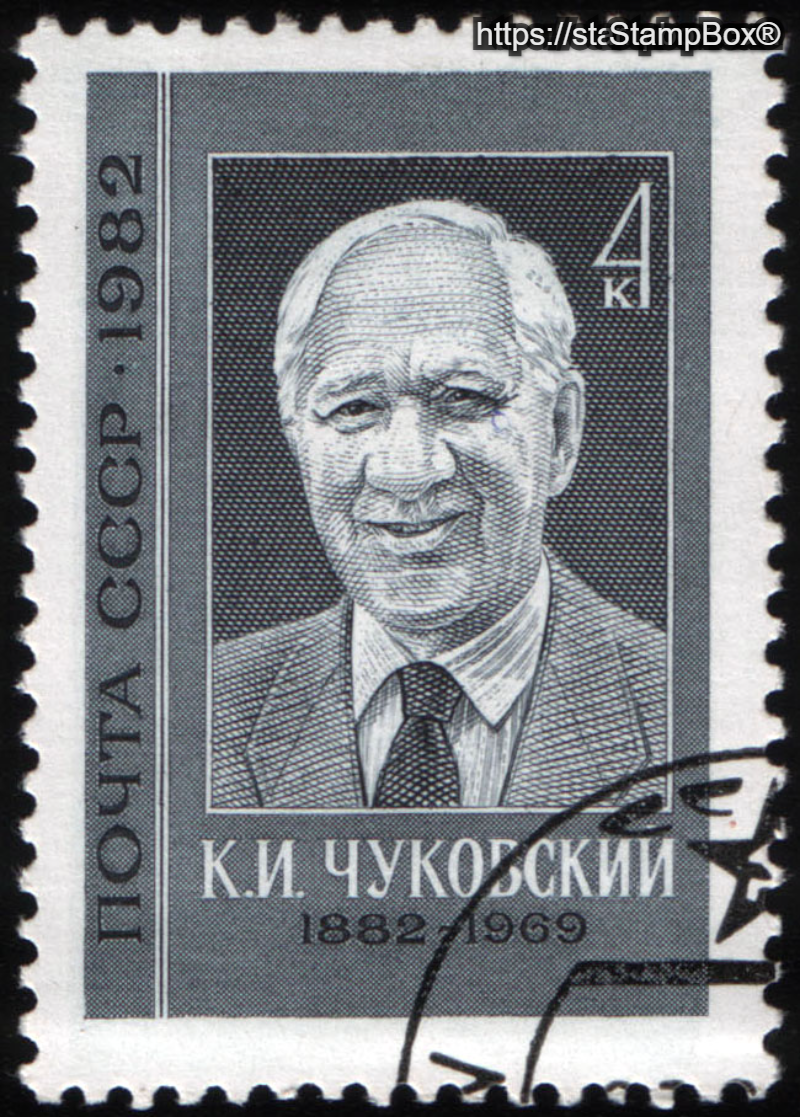
Ribon sample
Available: 1
S674-63-7829
  • Shipping : Pickup Only
  • Price: $3.00
    Coins: ₡33
Zeppelins actual
Available: 1
S682-46-2551
  • Shipping : Shipping Local/Domestic Only (Country)
  • Price: $3.00
    Coins: ₡33
British Lady actual
Available: 1
S331-78-8007
  • Shipping : Shipping Local/Domestic Only (Country)
  • Price: $22.00
    Coins: ₡22
Zeppelins actual
Available: 1
S770-75-5427
  • Shipping : Shipping Local/Domestic Only (Country)
  • Price: $2.00
    Coins: ₡22
For Sale Movile actual
Available: 1
S698-26-8076
  • Shipping : Pickup Only
  • Price: $5.00
    Coins: ₡15

Here's How To Buy/Sell:


OR

1. How to Buy an Item (For Sale)

This guide outlines the steps required to purchase a fixed-price item listed in the StampBox "For Sale" Marketplace using the standard checkout process.

Prerequisites
  • Ensure you are logged into your StampBox account.
  • Ensure you have sufficient balance (cash or coin, depending on payment method) in your associated wallet or account.
Step-by-Step Instructions
Step 1. Navigate to the "For Sale" Marketplace

Navigate to the "For Sale" section of the Marketplace, or visit the following URL directly: https://stampbox.com/marketplace/for-sale

Step 2. Select the Item

Browse the listings. Once you find the item you wish to purchase, click the Item Title or Image to open its detailed view.

Step 3. Add Item to Cart

On the item detail page, locate and click the "Add to Cart" button.

Step 4. View Cart Details

The item is added to your cart. You will be automatically redirected to the Cart Detail screen, or you can click the My Cart Basket icon in the top menu.

Step 5. Select Payment Type

On the Cart Detail screen, select your preferred payment type: Coin or Cash. After selection, click the "Next" button.

Step 6. Provide Shipping Information

Enter your required Billing and Shipping details accurately. Click the "Next" button.

Step 7. Choose Shipping Rate

You will be redirected to the Shipping Rate step. Select your desired shipping method from the available options and click the "Next" button.

Step 8. Final Payment

On the Payment tab: Choose your preferred payment method (select an existing card or enter details for a new card). Review the final total and click the "Pay Now" button to complete the transaction.

A confirmation screen will display the message: "Here you go your order has been placed" (or similar confirmation). You will also receive an email confirmation of your purchase.

2. How to List an Item for Sale

This guide details the procedure for selecting an item from your inventory and successfully creating a new fixed-price listing in the StampBox Marketplace.

Prerequisites
  • You must be logged into your StampBox account.
  • The item you wish to list must already be cataloged in your inventory (for existing items).
Step-by-Step Instructions
Step 1. Navigate to the Sale Listing Tab

Navigate to the Marketplace and click the "List a Sale" button, or visit the following URL directly: https://stampbox.com/marketplace/for-sale

Step 2. Select the Sale Item Type

A pop-up window will appear, presenting Three options:

  • Option 1: Stamp
  • Option 2: Album and Bundle
  • Option 3: Supply
Step 3. Select the Main Item

A new pop-up will open. Use the tabs on the left side (e.g., My Stamps & Create Stamp) to select the source of the item you want to sell. Click on the item you wish to list, and then click the "Submit" button.

Step 4. Confirm Sub-Items

Scroll down and Select sub-items, check the box next to the specific item name(s) you intend to include in the sale.

Step 5. Complete the Create Sale Form

Fill out the Create Sale Form with all necessary details:

  • Set Pricing
  • Parcel Detail
  • Write Shipping Instructions
  • Shipping Option
  • Return policy
Step 6. Finalize and Submit

After entering all required information: Select the appropriate option for Save as (Publish or Draft). Click the "Publish" button.

A confirmation message will display, and your item will appear in the "For Sale" section of the marketplace (if Publish (Immediately) was selected).